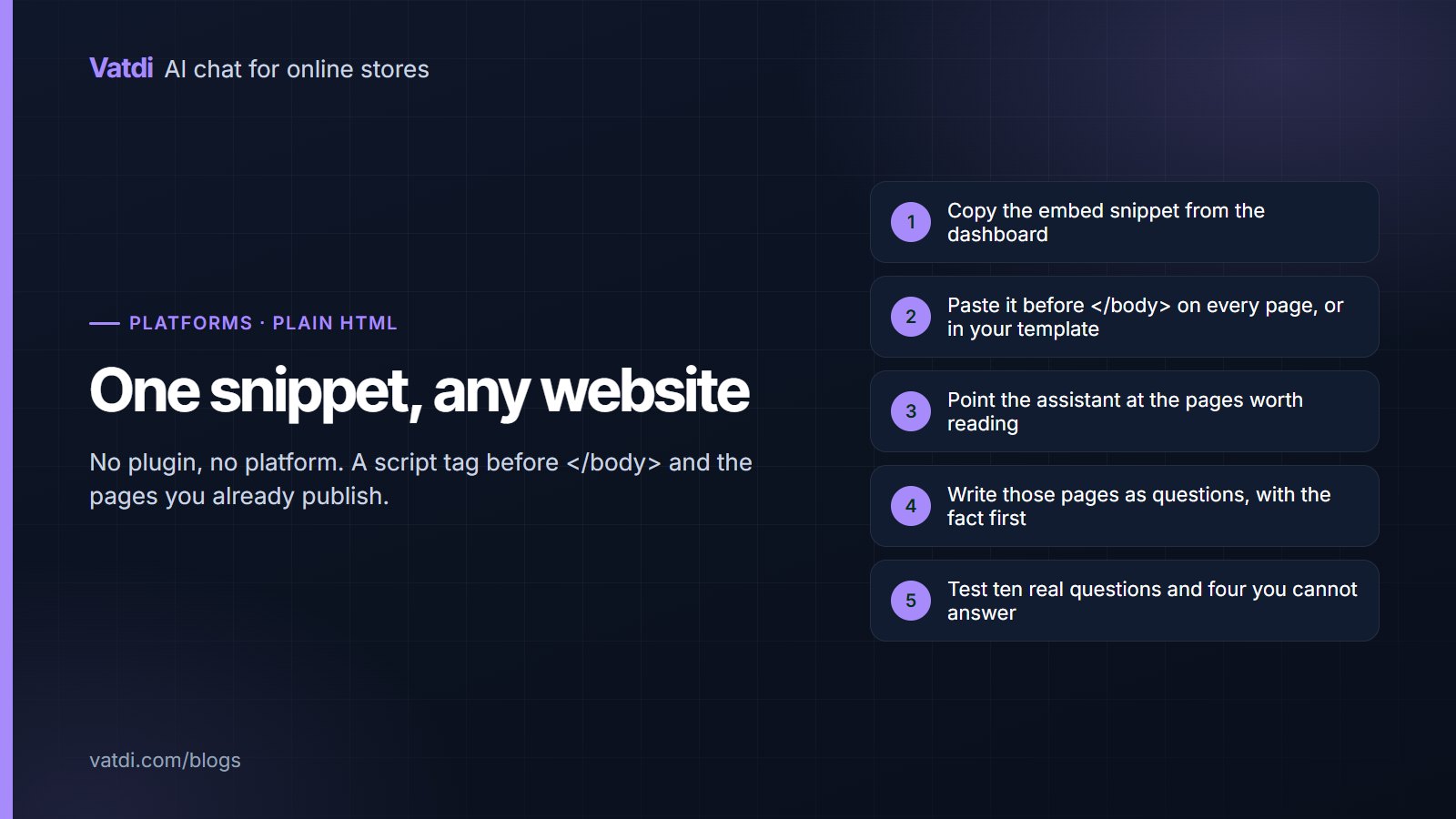
An AI chatbot for HTML website pages needs no plugin and no platform: one script tag before the closing body tag puts the assistant on the page. What it can answer depends entirely on the pages you point it at, which for a static site means the content you already publish. That makes setup fast and the content work the only real project.
Where the snippet goes
| Site type | Where to paste it | Note |
|---|---|---|
| Hand-written HTML | Before </body> on each page | A shared footer include saves repeating it |
| Static site generator | In the base layout or default template | Jekyll, Hugo, Eleventy and similar all have one |
| A page builder's custom code area | The site-wide footer code field | Site-wide, not per page, so it appears everywhere |
| A single landing page | Before </body> | Nothing else needed |
The script loads asynchronously, so it does not block rendering. Paste it once in the template rather than on forty pages individually, and you will never have a page where the assistant is missing.
What it can answer without a store platform
- Anything on your pages: services, prices if published, opening hours, locations, policies, process, frequently asked questions.
- Documents you add, such as a price list, brochure or specification sheet.
- Entries you write in the dashboard for questions that have no natural page.
- Contact routing: who to email, when a person is available, and taking an address out of hours.
What it cannot do without a platform is live order lookup, stock levels or anything that requires reading a database in real time. Those need a store plugin, which is why the platform pages exist; see the integrations page for the platforms where lookup is available.
Structuring a static site so answers are specific
- One question per heading, phrased the way visitors ask it.
- The fact in the first sentence, with the number, the hours, the area covered.
- Prices as text, not in an image or a PDF-only price list.
- Exceptions named, since those generate the follow-up emails.
- One authoritative copy of each fact, so the footer and the contact page cannot disagree.
The detailed format is in how to write a chatbot knowledge base, with worked rewrites in chatbot knowledge base examples.
Common static-site cases
Three kinds of site use this route most. Service businesses with a brochure site, where the questions are hours, area, price ranges and how to book. Documentation or portfolio sites, where the assistant answers "does it support X" from the docs. And stores on a platform with no plugin, where the widget still answers product and policy questions from the published pages even though live order lookup is unavailable. In all three the content work is identical, and in all three the assistant should say plainly when it does not have something rather than guessing, which is the behaviour to verify first.
Pointing it at the right pages
A static site usually has a handful of pages worth reading and a long tail that is not. Choose deliberately rather than crawling everything. Include the pages that answer questions: services, pricing, hours and location, process or how-it-works, policies, and a contact page with real availability. Leave out news archives, tag listings, thank-you pages and anything superseded. Two pages that say different things about the same fact are worse than one page that says nothing, because the assistant has to choose and will sometimes choose the old one. If your site has a blog, treat individual posts as optional: include the two or three that genuinely answer recurring questions and skip the rest. Fewer, current sources beat completeness every time, which is the same lesson stores learn with policy pages.
When the site is not really static
Many sites described as plain HTML have one dynamic corner: a booking form, an availability calendar, a members area. The assistant cannot see inside those, so decide what it should say when asked. Usually the right answer is a short explanation plus the link: "I can't check live availability, but the booking page shows what's open for the next month." That is more useful than silence and more honest than a guess. The same applies to anything behind a login. Publishing a plain-language summary of what members get, on a public page, lets the assistant answer the pre-signup questions that otherwise go unanswered at midnight.
Performance and privacy
- Loading: the script is asynchronous and small; it should not affect your page speed score meaningfully.
- Placement: before the closing body tag, after your other scripts, so nothing competes for the same corner of the screen.
- Mobile: check the launcher does not sit on top of a sticky call-to-action bar.
- Cookie notices: confirm the launcher is still reachable while a consent banner is displayed.
- Privacy: link your privacy policy from the widget, and collect only what a conversation needs. For European visitors the GDPR overview is a reasonable orientation; your own policy governs.
A worked case: a two-person service business
A plumbing firm with an eight-page site gets the same four questions all week: do you cover my area, what does a callout cost, how soon can you come, and do you work weekends. Three of those are answerable from content the site already half-contains, and the fourth is a scheduling question a person must handle. The afternoon's work is to create a coverage page listing postcodes, a pricing page with the callout fee and hourly rate as text rather than "competitive rates", and an hours page that names the weekend position explicitly. Then set the assistant to take an email for scheduling requests outside working hours. The result is not fewer calls; it is fewer calls about things a page could answer, and more of the calls that turn into work.
Testing and cost
Ask the ten questions you receive by email most often, plus four you genuinely cannot answer, and score each reply as correct, incomplete, wrong or declined well, following how to test AI chatbot accuracy. As of September 2026 Vatdi is free for 15 conversations a month with every feature included, $4.49 for 150 and $7.49 for unlimited; see pricing. The mechanism that lets an assistant answer from your published pages rather than a scripted tree is described in Lewis et al., 2020, and the wider setup order is in the AI chatbot implementation guide.
Frequently asked questions
How do I add a chatbot to an HTML website?
Paste the embed snippet before the closing body tag, ideally in a shared template or footer include so it appears on every page. There is no plugin to install and no build step. The assistant then answers from the pages you point it at, which is where the actual work lies.
Does it work on a static site generator?
Yes. Put the snippet in the base layout of Jekyll, Hugo, Eleventy or whatever you use, and it renders on every page. Static sites are a good fit, because their content is public and stable, which is exactly what a grounded assistant reads well.
Can it check orders or stock?
Not without a store platform connection, since those require reading live data. On a plain site the assistant answers from published content only. If order status matters to your visitors, either publish a tracking route or use a platform where a plugin provides live lookup.
Will it slow my site down?
The script loads asynchronously and should not block rendering or meaningfully change your page speed. The practical things to check are placement on mobile, where a launcher can collide with a sticky button, and whether a cookie banner covers it on first visit.
What if my content is mostly in PDFs?
Upload the documents so the assistant can read them, but move the most-asked facts, prices, hours and coverage, into HTML pages as well. Visitors and search engines both handle pages better than files, and answers drawn from a clearly structured page are more precise.
Do I need to add the snippet to every page?
Only if you have no shared template. Where a layout or include exists, add it once there. Sites that paste it page by page inevitably end up with a few pages missing the assistant, usually the newest ones, which is where visitors are most likely to have questions.