A PrestaShop chatbot module installs the way every other module does, through the back office, and connects to the assistant without copying API keys around. The part that decides whether it is useful comes afterwards: the catalogue sync, order lookup, and five pages written so the answers are specific. Allow an afternoon, most of it for content rather than configuration.
Before you start
| Check | Why it matters |
|---|---|
| PrestaShop version | Module compatibility differs between 1.7, 8 and 9 branches |
| Back office access | You need permission to install modules and clear the cache |
| Product attributes | Empty features and combinations are the main cause of weak answers |
| CMS pages | Shipping, returns and sizing content should exist before you connect |
| Multi-store setup | Decide which shop the assistant serves, and whether content differs |
Step one: install and connect
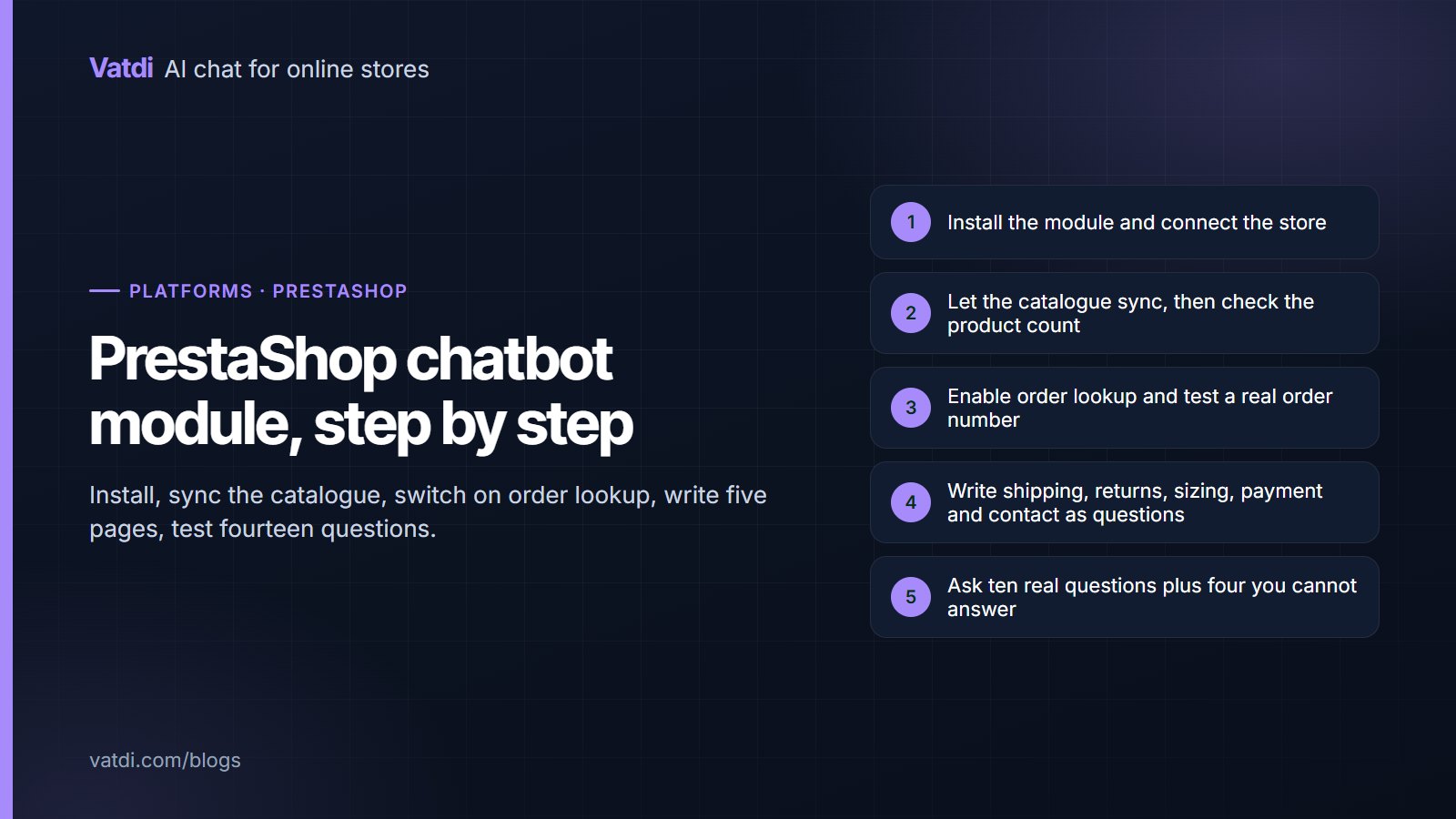
Upload the module zip in the back office under Modules, install it, and open its configuration. Connecting creates the link between the shop and the assistant, after which the catalogue begins to sync. If the module list does not show it after upload, clear the PrestaShop cache and check the file permissions on the modules directory, which is the usual cause. The available platforms and downloads are listed on the integrations page.
Step two: check the sync
- Compare counts. The number of synced products should match your active catalogue, allowing for disabled products.
- Check combinations. Sizes and colours should appear as variants rather than as one undifferentiated product.
- Look at one product's detail in the assistant's knowledge view and confirm the price, stock and features came through.
- If the count stalls, the usual culprits are a security plugin blocking the request, a very large catalogue that needs more passes, or a PHP time limit on the shop.
- Re-sync after bulk edits, since a mass price or stock change is exactly when stale data becomes visible.
Step three: order lookup
Enable order lookup in the module configuration and test it with a real order reference and the email on that order. Then test the failure cases: a reference that does not exist, and a real reference with the wrong email. Both should decline cleanly. Order status is the most requested task in store chat, so this is the single check worth doing carefully.
Step four: the five pages
PrestaShop stores usually have the necessary information spread across CMS pages, the carrier configuration and the checkout. The assistant reads pages, so anything that exists only in a carrier setting needs writing out. Create or rewrite five CMS pages with a heading per question and the fact in the first sentence: shipping costs and times by zone plus the dispatch cut-off, the returns window with exclusions, sizing measurements as text, payment methods, and contact hours. Worked before-and-after examples are in chatbot knowledge base examples, and the general format is in how to write a chatbot knowledge base.
Step five: test before announcing it
- Ask the ten questions your customers send most, in their wording.
- Ask four you cannot answer and confirm the assistant declines rather than guessing.
- Test the order lookup cases above.
- Ask one question in another language if you sell across borders.
- Request a person and confirm the handover carries the transcript.
Score each as correct, incomplete, wrong or declined well, using the method in how to test AI chatbot accuracy. A confident wrong answer means a content contradiction to find, not a module to reconfigure.
What the first fortnight looks like
Expect the first week to be quiet and the second to be informative. Shoppers need to notice the launcher, so volume builds gradually, and the earliest conversations are almost always order status and delivery. By the end of the second week the assistant's list of unanswered questions has enough entries to be useful, and on a PrestaShop store that list tends to name three things: a carrier rule that lives in the back office rather than on a page, a product feature nobody filled in for a whole category, and a returns detail that exists in the terms but not in the customer-facing CMS page. Each takes minutes to fix and each removes a recurring failure. Resist the urge to change settings during this period; almost every disappointing answer in a fresh installation traces back to content that is missing rather than configuration that is wrong.
PrestaShop-specific notes
- Features versus attributes. PrestaShop separates them, and both matter: features describe the product, attributes drive combinations. Fill features on best sellers.
- Multi-store. If shops differ in policy or catalogue, keep their content separate rather than sharing one knowledge base.
- Friendly URLs and CMS structure. Clean page URLs help you point customers at the right page in an answer.
- Caching. After configuration changes, clear the cache before deciding something did not work.
- Module updates. Re-check order lookup after upgrading the module or the shop, since that is when integrations quietly break.
PrestaShop's own developer documentation covers module structure if you need to look under the hood, and the retrieval approach that lets the assistant answer from your pages rather than a script is described in Lewis et al., 2020.
Where the widget should appear
Decide this before launch rather than after complaints. The launcher belongs on product and category pages, where hesitation happens, and on the CMS pages where people go looking for policy answers. Keep it closed by default: an auto-opening panel over a product image costs more goodwill than the conversations it starts. Check the mobile view in your theme, because PrestaShop themes frequently place a sticky add-to-cart bar exactly where a chat launcher wants to sit, and one will hide the other. If your theme has a cookie banner, confirm the launcher is still reachable while the banner is showing. These are five-minute checks that prevent the most common reason a well-configured assistant gets no traffic at all.
What it costs
The module is free to install and the plan decides the rest. As of September 2026 Vatdi is free for 15 conversations a month with every feature included, $4.49 for 150 and $7.49 for unlimited conversations, with product and knowledge allowances per tier and badge removal the only paid extra; see pricing. The wider sequence, including what to do in the first fortnight, is in the AI chatbot implementation guide.
Frequently asked questions
How do I install a chatbot module on PrestaShop?
Upload the module zip in the back office, install it, open its configuration and connect the shop. No API keys are copied by hand. If it does not appear in the module list after upload, clear the cache and check permissions on the modules directory, which accounts for most failed installs.
Does it work with PrestaShop 8 and 9?
Check the module's stated compatibility for your branch before installing, since the 1.7, 8 and 9 lines differ in ways that affect modules. If you run an older shop, test on a staging copy first rather than on the live store during a busy period.
Can it look up orders?
Yes, with order lookup enabled in the module configuration. The customer supplies the order reference and the email on the order, and both must match before anything is returned. Test the mismatch cases deliberately; declining cleanly is as important as answering correctly.
Why is the catalogue sync stuck?
Usually a security plugin blocking the request, a large catalogue needing more passes, or a PHP execution limit on the shop. Compare the synced count with your active product count, then check those three in order. Re-sync after bulk price or stock edits so answers do not quote yesterday's data.
What about multi-store setups?
Decide which shop the assistant serves and keep content separate where policies or catalogues differ. Sharing one knowledge base across shops with different returns terms produces confident answers about the wrong shop, which is worse than having no assistant on the second store.
How long does the whole setup take?
Installation and sync are minutes. The five CMS pages are the real work, typically an afternoon, and they improve the storefront regardless. Testing is another half hour. After launch, a weekly look at the unanswered-question list keeps the content current without a project.