An AI chatbot for WooCommerce should do four things: read your products, pages and policies so answers carry real prices and stock; look up an order live when a shopper gives the order number and email; hand the conversation to a person with the transcript; and answer in the shopper's language. It should also install in minutes with no keys to copy. Below: the setup, what syncs, the tests to run, and what month one usually looks like.
What a WooCommerce chatbot has to read
WooCommerce stores keep the facts a shopper asks about in four places, and the plugin has to reach all four for the bot to be useful:
| Where the fact lives | Examples | How it reaches the bot | What it unlocks |
|---|---|---|---|
| Products | Price, sale price, variations, stock, attributes, categories | Plugin sync, kept current on publish and update | Product cards, "is it in stock", "does it fit" |
| Pages and posts | Shipping, returns, sizing, FAQ, about | Plugin sync of published content | Policy answers with the numbers from your page |
| Reviews | Star ratings and review text | Plugin sync | "What do people say about the fit" answered from real reviews |
| Orders | Status, items, tracking where stored | Live lookup at question time, verified with email or phone | "Where is my order" without a person |
A tool that only places a script on the site reads the first two through a crawl and never sees stock, variations or orders. Vatdi's WordPress plugin (Vatdi AI Chat Agent on WordPress.org; WordPress 5.0 or later) syncs products, categories, reviews, posts and pages and performs the order lookup; the platform page is AI chat for WordPress and WooCommerce.
Install and connect in five steps
- Plugins › Add New, search "Vatdi AI Chat Agent", Install Now, Activate. Manual route: upload the zip under Add New › Upload Plugin.
- Vatdi AI Chat appears in the WordPress sidebar. Open it and click Connect to Vatdi AI. A short sign-up or sign-in links the site; there are no keys or codes to paste.
- Let the first sync finish. Published products, categories, reviews, posts and pages are sent to the assistant's knowledge base; later edits sync when you publish or update.
- Open the Vatdi dashboard for everything else: widget appearance (brand colours are detected automatically), quick replies, welcome message, agent hours, the fallback language and any documents you want to upload.
- Check the storefront. The widget appears on every page; hide it on the checkout page from the dashboard if you prefer, separately for desktop and mobile.
The install itself is minutes; plan an hour for the content and test steps below, which are what decide whether the bot is good.
How order lookup works on WooCommerce
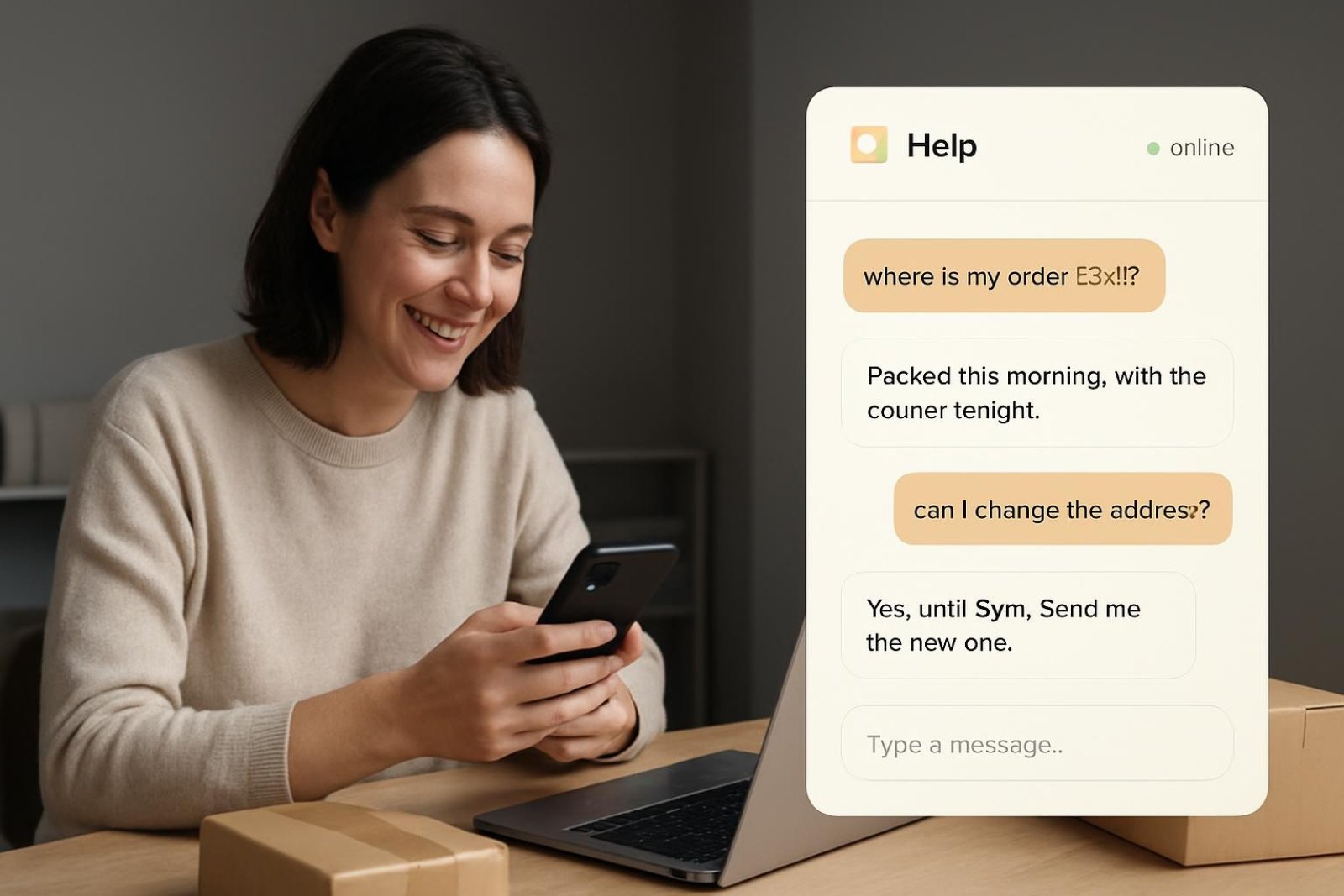
When a shopper asks where their order is, the bot asks for the order number and the email or phone used at checkout, the plugin verifies the pair against the WooCommerce order and returns the live status; nothing is shown without a match, and repeated wrong guesses are rate-limited. Test it before launch with a real order and the right email, then the same order with a wrong email: live status, then a polite refusal. The pattern and its edge cases are in order tracking in chat and how to track orders with a chatbot.
The ten-question test
Run this in the live widget on a phone before customers see it. Take the ten questions your inbox receives most; for a typical WooCommerce store they look like this:
- How long does delivery take to my country, and what does it cost?
- Can I return a sale item?
- Is the medium in stock in blue?
- Does this fit or work with the thing I own?
- Where is my order? (real number, right email; then wrong email)
- Do you offer a discount code?
- Which payment methods do you take?
- What do the reviews say about sizing?
- Can I talk to a person? (inside and outside agent hours)
- Two negative cases: a product you do not sell, and an exact delivery date.
Pass conditions: policy answers quote the number from your page; product answers show a card with the current price; the order lookup returns status then refuses; the negative cases get a decline and a range. Fix the content behind any wrong answer, not the plugin; the general method is in how to train a chatbot on your data.
Content that makes the WooCommerce bot good
- Attributes as attributes. Size, material, compatibility and capacity should be WooCommerce attributes or variation options, not sentences in the description; the sync carries them and the product card can show them.
- One shipping page with a zones table: destination, service, working days, price, free-shipping threshold.
- A returns page written one question per heading, the number in the first sentence. The format is in our knowledge base guide.
- Retire old promotion pages from publication or the bot will quote them truthfully and wrongly.
- Coupons with conditions set in WooCommerce, so the bot states the rule when it offers the code.
What the first month usually looks like
- Week 1: the bot answers shipping, returns and product questions; the first low-graded conversations show which page is missing or unclear. Vatdi grades every conversation 0–10 with plain-English advice; fix the content behind each low score.
- Week 2: order-status questions stop reaching the inbox for shoppers who provide their details; the ones who do not are asked for them. Missed handovers show whether agent hours match when shoppers write.
- Week 3–4: the answered-without-a-person share settles; the remaining handovers are refunds, damaged goods and disputes, which is where they should be. Compare support emails on the six repeat topics with the month before.
Plan for thirty minutes a week on the low-rated conversations. That habit, not the install, is what moves the numbers; the loop is described in advanced chatbot techniques.
Common problems and fixes
| Symptom | Usual cause | Fix |
|---|---|---|
| Sync stops at a few products | A security plugin or host firewall challenging the sync requests | Allow the sync traffic, or check the plugin's connection status page; the assistant retries automatically |
| Prices in answers are stale | Product edited without re-publishing, or the sync paused | Update the product; check the last-sync time under Vatdi AI Chat |
| Widget not visible | A caching plugin serving an old page, or the widget hidden on that page | Purge the cache; check the hide-on-pages setting |
| Bot says "I don't know" to a policy you have | The policy is in a PDF image, a draft page or an unpublished post | Publish it as text; upload documents from the dashboard |
| Order lookup refuses a real order | Email or phone differs from the one on the order | Ask the shopper for the contact used at checkout |
Cost and plan notes
The plugin is free; the assistant is priced per store, not per agent. As of September 2026: Free with 15 conversations a month and every feature (catalogue sync, order lookup, handover, languages, lead capture), Starter at $4.49 a month for 150 conversations, Grow at $7.49 for unlimited, unlimited teammates on each (pricing). For how that compares with per-seat and per-resolution tools on WooCommerce, see best AI chatbot for WooCommerce and the seven-tool comparison. The WooCommerce documentation covers the product attributes and coupon settings referred to above (WooCommerce docs).
Frequently asked questions
Does the WooCommerce chatbot need an API key?
No. Install the plugin, open Vatdi AI Chat in the WordPress sidebar and click Connect to Vatdi AI; the site is linked through a short sign-in and the credentials are stored for you. Everything else, from widget appearance to agent hours, is managed in the Vatdi dashboard. If you ever disconnect, the same button reconnects without re-entering anything.
What does the plugin sync from WooCommerce?
Published products with their prices, sale prices, variations, stock and attributes; product categories; product reviews; and published posts and pages. Changes sync when you publish or update. Draft and private content is not sent. Orders are not copied; they are looked up live, and only when the shopper provides the order number plus the email or phone on the order.
Can the chatbot tell customers where their order is?
Yes. The shopper gives the order number and the email or phone used at checkout, the plugin verifies both against the WooCommerce order and the bot returns the live status, including tracking details where they are stored on the order. Nothing is shown without a match and repeated wrong guesses are rate-limited. Test it with a real order before launch.
Will it slow down my WordPress site?
The widget script loads asynchronously after the page content, and syncing happens in the background rather than on page views. Check it yourself with a page-speed tool: compare a product page's largest-content timing with the widget enabled and disabled. If you run an aggressive caching plugin, purge it once after install so the widget appears on cached pages.
Does it work with WooCommerce variations and stock?
Yes. Variations sync with their own prices and stock, so "is the medium in stock in blue" gets a specific answer and the product card shows the current price. The condition is that size, colour and similar facts are set as attributes or variation options rather than written only in the description, because the sync carries fields, not prose.
What if my customers write in another language?
The bot detects the language of each message and answers from your English content in the shopper's language, with a fallback language you set for short messages; the widget's own labels switch too and you can edit each translation. Test ten questions in each language you sell into before launch, and keep product names untranslated so the card and the answer match.