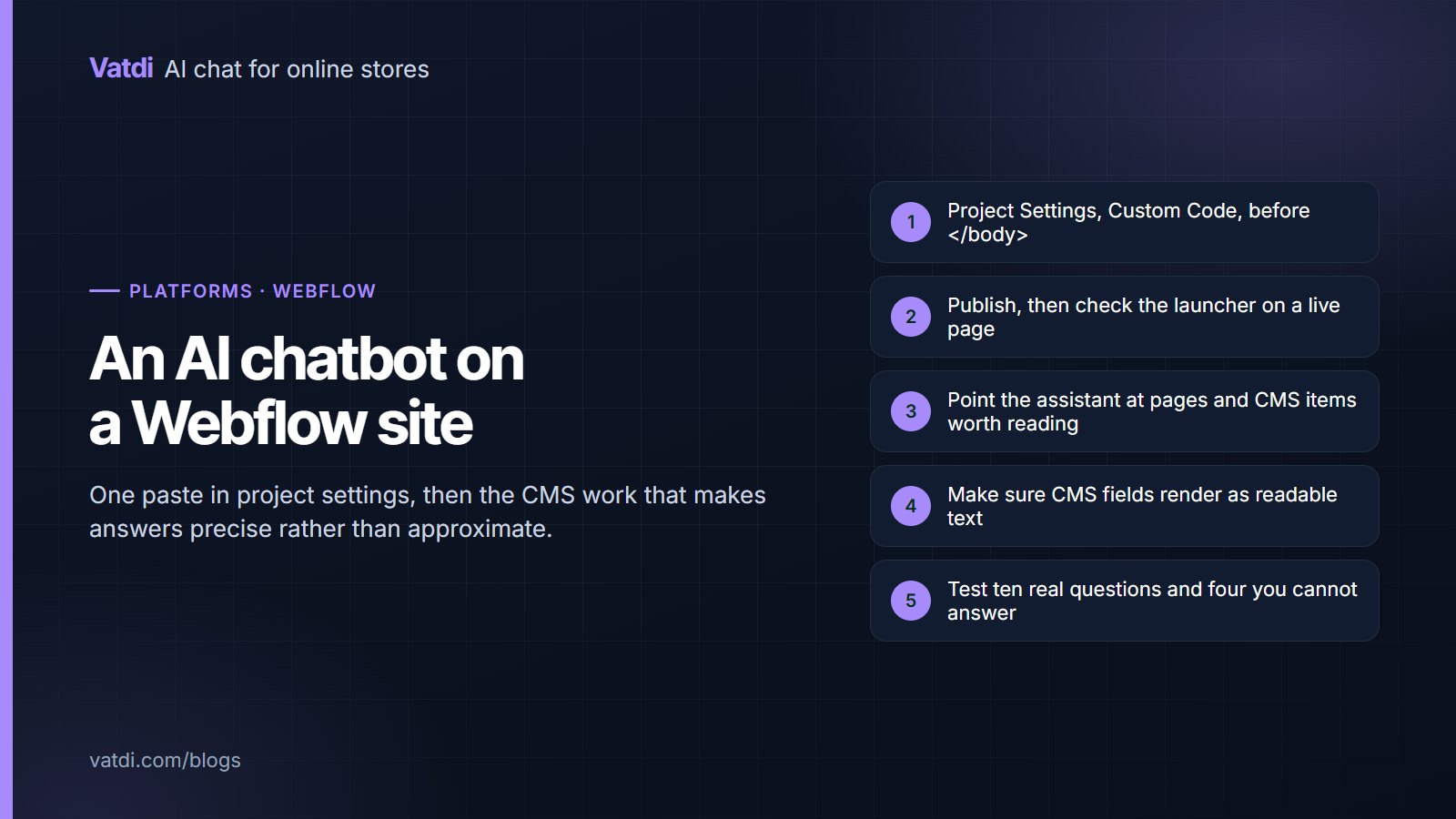
Adding an AI chatbot for Webflow takes one paste into the site-wide custom code area and a publish. The interesting work is content. Webflow CMS collections hold structured data that can make answers precise, but only if the fields actually render as text on a published page, which heavily designed templates sometimes prevent.
Where the embed goes
| Setting | Choose | Why |
|---|---|---|
| Location | Project Settings, Custom Code | Applies site-wide rather than to one page |
| Position | Before the closing body tag | Loads after content, so rendering is not blocked |
| Page-level code | Avoid for this | Scopes the assistant to a single page |
| Publish | Required | Custom code only appears on the published site |
| Staging domain | Test here first | Lets you check placement before it is live |
Custom code does not run in the Designer canvas, so check the published or staging site rather than concluding the snippet failed. That single detail accounts for most reports of a Webflow embed "not working".
CMS collections and answer quality
- Collection fields are an advantage when they hold discrete values: price, duration, capacity, material, area covered.
- They only help if they render. A field bound to a hidden element or used only for filtering is invisible on the page.
- Label the values. A bare number with no label is ambiguous; "Duration: 90 minutes" is not.
- Keep collection items published, since drafts are not public content.
- Watch pagination and listing pages, which repeat fragments without answering anything.
The general principle is in what to feed a store chatbot: fewer, clearer sources beat everything you happen to have published.
Interaction-heavy pages hide facts
Tabs and accordions usually keep their text in the markup, so those are often fine; sliders, canvas effects and text baked into images are not. The reliable check is to view the published page's text: if you cannot select the number with your cursor, treat it as absent and add a text block. Search has the same limitation, which is the point behind Google's guidance on helpful content.
What it can and cannot answer
From published pages and CMS items it answers services, prices where published, hours, locations, policies, process and frequently asked questions, plus anything in documents you upload. What an embed cannot do is read live commerce data: if you run Webflow Ecommerce, the assistant answers from the published product pages rather than a live catalogue, and it cannot report order status the way a plugin platform can. Say so in your content, so it declines cleanly rather than guessing; live lookup platforms are listed on the integrations page, and the equivalent guidance for hand-built sites is in AI chatbot for HTML website pages.
Pre-launch checks
- Publish, then look at the live site, since custom code does not run in the Designer.
- Check mobile, where a sticky call-to-action or nav button may occupy the launcher's corner.
- Check with the cookie banner showing, if you run one.
- Open a CMS template page and confirm the assistant appears there too, not just on static pages.
- Select the key numbers with your cursor to confirm they exist as text.
Agency-built sites and who owns the content
Many Webflow sites were built by an agency and are edited rarely afterwards, which changes the practical question from "how do we set this up" to "who updates a page when the assistant reveals a gap". Decide that before launch. If the client can edit CMS items and text blocks in the Editor, the weekly loop works: read the unanswered questions, fix the page, publish. If every change requires a request to the agency, the loop stalls and the assistant slowly drifts out of date while nobody notices. The cheap fix is to move the most-changed facts, prices, hours, availability and policy terms, into CMS collection items the client can edit without touching the design. That is a half-day of structuring work that saves a year of small requests. It also makes the site better for the client regardless of whether the assistant stays, which is a reasonable thing for an agency to propose.
Staging, publishing and the review habit
Webflow makes it easy to test on a staging domain before publishing, which is the right place to check the embed and the launcher position. Once live, treat content changes like design changes: publish deliberately rather than leaving edits in an unpublished state, since the assistant reads what is published, not what is in the Designer. A useful rhythm for a small site is a monthly pass rather than a weekly one, because a portfolio or service site produces fewer conversations than a store. Read whatever unanswered questions have accumulated, fix the two or three that recur, and publish. If nothing has accumulated, that is a result rather than a failure. The habit matters more than the frequency, because an assistant nobody reviews quietly becomes a source of outdated answers rather than useful ones.
Content worth writing first
Four pages cover most Webflow sites: what you offer and what it costs, how the process works, when and where you are available, and the policy questions that follow a purchase or booking. Write each with a heading phrased as the question and the fact in the opening sentence; worked rewrites are in chatbot knowledge base examples, and the format in how to write a chatbot knowledge base. If your site is mostly a portfolio, the questions are usually about availability, scope and price range, and a single honest page about how you work answers most of them. Publishing a price range rather than nothing is worth considering here: it filters enquiries before they reach you, and the assistant can only quote what exists.
Testing and cost
Ask the ten questions you receive most, plus four you genuinely cannot answer, and score each as correct, incomplete, wrong or declined well; the method is in how to test AI chatbot accuracy. As of September 2026 Vatdi is free for 15 conversations a month with every feature included, $4.49 for 150 and $7.49 for unlimited, with badge removal the only paid extra; see pricing. The retrieval method that lets an assistant answer from published pages rather than a script is described in Lewis et al., 2020, and the wider setup order is in the AI chatbot implementation guide.
Frequently asked questions
How do I add a chatbot to Webflow?
Paste the embed snippet into Project Settings, Custom Code, in the section that loads before the closing body tag, then publish. It appears on every page including CMS templates. Page-level custom code scopes the assistant to one page, which is rarely what you want.
Why does the widget not appear in the Designer?
Custom code does not run on the Designer canvas, only on the published or staging site. Publish and check there before concluding the snippet failed. This is the single most common false alarm when adding any third-party embed to a Webflow project.
Can it read my CMS collections?
It reads the published pages those collections render, so structured fields help when they appear as labelled text. Fields used only for filtering, or bound to hidden elements, are invisible. Check a live collection page and confirm the values you care about can be selected as text.
Does it work with Webflow Ecommerce?
It answers from published product pages rather than a live catalogue feed, so descriptions and specifications work while live stock and order status do not. State that in your content so the assistant declines cleanly and directs people to their account or your contact route instead of guessing.
Will it affect my site's performance?
The script loads asynchronously before the closing body tag and should not block rendering. On design-heavy Webflow sites the dominant costs are usually images and interactions rather than a small third-party script, but it is worth checking a page on mobile after adding it.
My prices are in a slider. Can it still answer?
Not reliably. If the figures are not selectable text on the published page, treat them as absent and add a text block with the same numbers. You can keep the slider for design; the assistant, search engines and screen readers all need the text version to exist.