An AI chatbot for Squarespace goes in through site-wide code injection, which takes a minute. Two things decide whether it is worth having: your plan needs to allow code injection at all, and your pages need to state the facts as text rather than inside images. Both are easy to check before you start.
Where the snippet goes
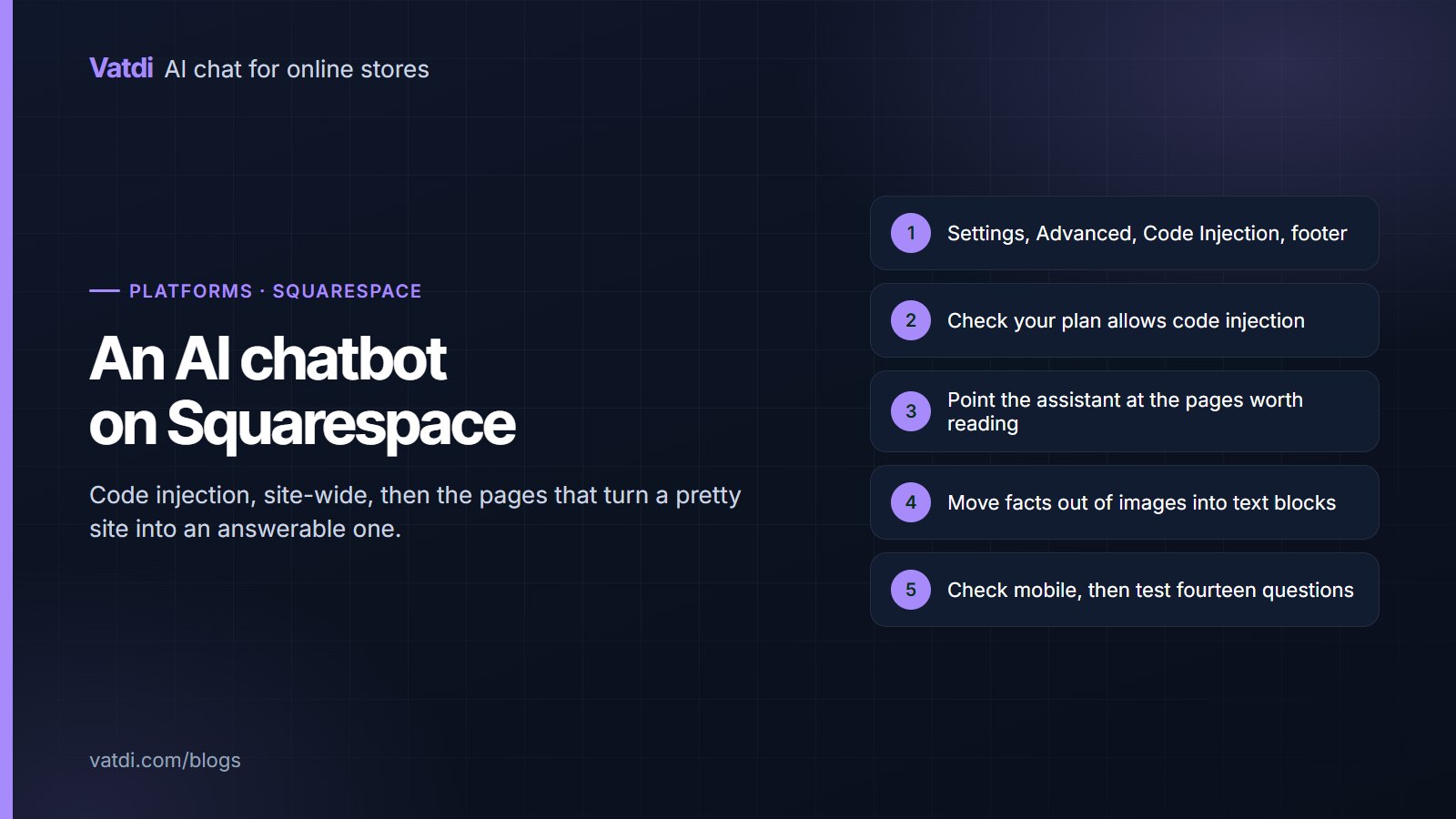
| Step | Where | Note |
|---|---|---|
| Open injection | Settings, Advanced, Code Injection | Site-wide, not a single page's code block |
| Paste | The Footer field | Loads after content, so rendering is not blocked |
| Save and view live | The published site | Injected code does not run in the editor preview |
| Per-page code block | Avoid for this | Scopes the assistant to one page only |
| Plan check | Business and commerce plans | Code injection is not available on the lowest tiers |
The plan requirement catches people out: if Code Injection is missing from Advanced settings, the plan does not include it, and no amount of pasting will help. Check that first rather than debugging a snippet that was never allowed to run.
What it can answer
- Anything on your pages: services, prices where published, hours, locations, policies, process, frequently asked questions.
- Documents you upload, such as a menu, a price list or a brochure.
- Entries written in the dashboard for questions with no natural page.
- Contact routing: who to email, when a person is available, and taking an address out of hours.
What an embed cannot do is read live commerce data. On Squarespace Commerce the assistant answers from published product pages rather than a live catalogue, and it cannot report order status the way a plugin platform can. Set that expectation in your content so it declines cleanly; the platforms with live lookup are on the integrations page.
The Squarespace content problem
This is the single most common reason an assistant on a Squarespace site cannot answer basic questions. The test is simple: try to select the number with your cursor on the live page. If you cannot, add a text block with the same information. The same change helps search, as Google explains in its guidance on helpful content, and it helps anyone using a screen reader.
Structuring the pages
- One question per heading, in the words visitors use.
- The fact in the first sentence: the price, the hours, the area covered, the lead time.
- Exceptions named, because those produce the follow-up emails.
- One authoritative copy of each fact, so the footer and the contact page cannot disagree.
- Leave out blog archives, tag pages and old announcements, which add noise without answering anything.
The full format is in how to write a chatbot knowledge base, with worked rewrites in chatbot knowledge base examples, and the selection principle in what to feed a store chatbot.
Bookings, classes and appointments
Many Squarespace sites run scheduling, and visitors will ask about it. The assistant should explain how booking works, the notice period, the cancellation policy and what happens if someone is late, all from a page you write. It should not claim live availability, because a wrong answer there wastes a journey. A short "how booking works" page absorbs a large share of these enquiries and works at ten at night when nobody is answering the phone. Where a booking genuinely needs a person, the handover rules in chatbot human handover apply.
A realistic picture of what changes
Squarespace sites usually belong to small businesses where the owner answers the phone and the email, often in the evening. The change an assistant makes is not dramatic: it answers the repetitive questions at the moment they are asked, and it takes a message when nobody is available. For a studio, a restaurant or a consultancy that typically means opening hours, prices, location and whether you can take on new work. What it does not do is generate demand or replace judgement, so measure it by whether the same four questions stop arriving by email rather than by anything more ambitious. If they do stop arriving, the hour spent moving facts into text has already paid for itself.
Checks before you tell anyone
Open the live site on a phone and confirm the launcher is visible and not sitting under a sticky button or announcement bar, which Squarespace templates frequently include. Check it is reachable while your cookie banner is displayed. Look at a page with a full-bleed banner or a heavy gallery, since those layouts occasionally stack elements over the corner. Then ask the ten questions you receive most and four you cannot answer, scoring each as correct, incomplete, wrong or declined well; the method is in how to test AI chatbot accuracy.
Blogs, galleries and everything else on the site
Squarespace sites accumulate pages that answer nothing: blog archives, tag listings, gallery pages, old announcements and event pages for events that have passed. Leave them out of the sources. They add noise, compete with the pages that actually answer, and occasionally produce an answer quoting a promotion that ended two years ago. The exception is a blog post that genuinely answers a recurring question, such as a guide to choosing between two of your services; include those individually rather than the whole archive. The rule of thumb is to include a page only if you would be happy for the assistant to quote it to a customer today.
What it costs
The embed is free; the plan decides the rest. As of September 2026 Vatdi is free for 15 conversations a month with every feature included, $4.49 for 150 and $7.49 for unlimited, with badge removal the only paid extra; see pricing. Remember to account for your Squarespace plan, since code injection requires a business or commerce tier. The retrieval approach that lets an assistant answer from published pages rather than a script is described in Lewis et al., 2020, the wider setup order is in the AI chatbot implementation guide, and the equivalent guidance for hand-built sites is in AI chatbot for HTML website pages.
Frequently asked questions
How do I add a chatbot to Squarespace?
Open Settings, then Advanced, then Code Injection, and paste the embed snippet into the Footer field. Save and view the live site, since injected code does not run in the editor preview. Avoid per-page code blocks, which scope the assistant to one page instead of the whole site.
Which Squarespace plan do I need?
One that includes code injection, which means a business or commerce tier rather than the lowest personal plan. If Code Injection does not appear under Advanced settings, the plan does not support it. Check that before troubleshooting a snippet that was never permitted to run.
Can it answer questions about my products?
From your published product pages, yes: descriptions, specifications and anything else written as text. It cannot read live stock or report order status without a store plugin connection, so say that in your content and let the assistant direct people to their account or your contact route.
Why can it not find my prices?
Because they are almost certainly inside an image, a banner or a PDF rather than in a text block. Try selecting the number on the live page with your cursor. If you cannot, neither can the assistant, search engines or screen readers. Add a text version and keep the design.
Does it work with Squarespace Scheduling?
It explains how booking works, the notice period and the cancellation policy from pages you write, and points people at the booking page for actual slots. It does not read live availability. Setting that expectation in your content prevents a confident wrong answer about a time that is already taken.
The chat button is hidden on mobile. What now?
Look for an announcement bar, a sticky button or a cookie notice occupying the same corner, all common in Squarespace templates. Adjusting the launcher position fixes it. Worth doing before launch, because an assistant nobody can see looks like an assistant nobody wants.