A Shopware 6 AI chatbot installs like any other plugin, and two platform specifics decide how well it works: sales channels, which determine where the widget appears and which catalogue it answers from, and properties, which determine whether product answers are specific or useless. Everything else is the content work every store needs.
Before you install
| Check | Why it matters |
|---|---|
| Shopware version and plugin compatibility | 6.4, 6.5 and later differ in ways that affect plugins |
| Sales channels in use | Decides which storefront the assistant serves and with which content |
| Property groups | Populated properties are what make product answers specific |
| CMS pages (Shopping Experiences) | Policy text laid out in blocks must still exist as readable text |
| Languages and domains | Multi-domain setups often carry different terms per market |
| Admin access | Needed to install, configure and clear the cache |
Step one: install and connect
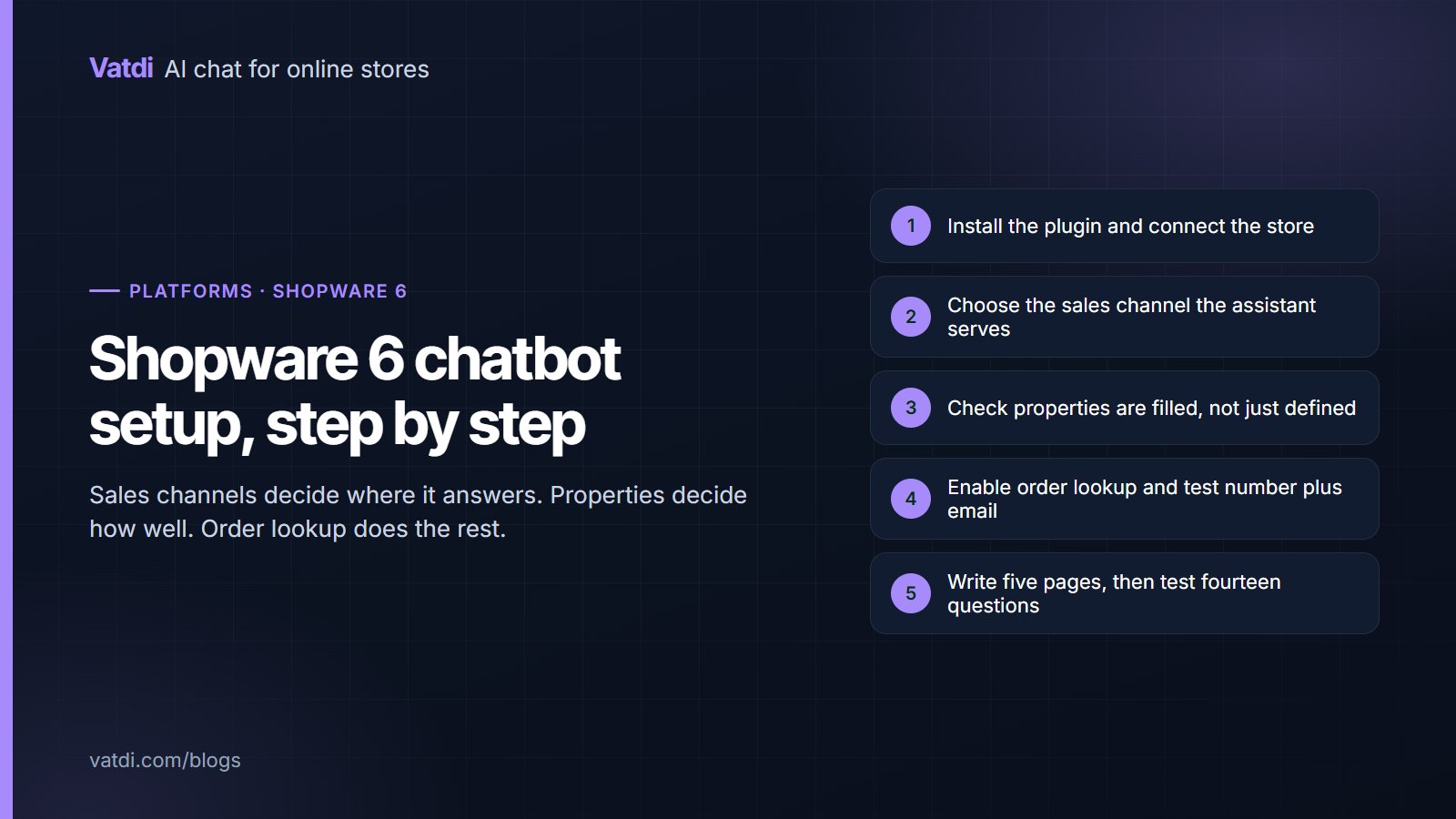
Install the plugin from the admin, activate it, and connect the store in its configuration. The catalogue starts syncing and order lookup becomes available without hand-copied API keys. If the plugin installs but will not connect, clear the cache first, then check whether a firewall or security layer is blocking outbound requests from the shop. Downloads and the current platform list are on the integrations page.
Step two: the sales-channel decision
Decide this before writing content, since it determines how many copies of each policy you maintain. The language side is covered in multilingual chatbot setup: one knowledge base answers many languages, so only genuinely different terms justify a second setup.
Step three: properties decide product answers
- Populate, do not just define. A property group with no values on products answers nothing.
- Pick the four your customers ask about: material, dimensions, compatibility, capacity, or whatever applies to your range.
- Cover your best sellers first, then extend as the unanswered-question list names gaps.
- Check variants appear with their options rather than as a single undifferentiated product.
- Keep descriptions factual. Marketing prose without specifics gives the assistant nothing to quote.
This is the highest-value hour of the setup, and it improves filters and search at the same time.
Step four: order lookup
Enable it in the plugin configuration and test with a real order number and the email on that order. Then deliberately test the failures: a number that does not exist, and a real number with the wrong email. Both should decline cleanly, because requiring the pair is what stops one customer reading another's order. Check which reference your confirmation emails show, since customers will quote that rather than an internal identifier. Order status is the most requested task in store chat, so this check deserves the care; the full treatment is in WooCommerce chatbot order tracking, and the verification logic is identical on Shopware.
Step five: the content
Shopware stores often build policy pages as Shopping Experiences layouts, which look good and sometimes leave the key numbers inside components that read poorly as text. Check that your shipping costs, cut-off time, returns window and exclusions exist as sentences on the page. Write each with a heading phrased as the question and the fact in the opening line; the pattern is in chatbot knowledge base examples, and what to include overall in what to feed a store chatbot.
Testing before launch
- Ask the ten questions your customers send most, in their wording.
- Ask four you cannot answer and confirm it declines rather than guessing.
- Run the three order-lookup cases.
- Ask a product question that depends on a property you just filled.
- Ask in a second language if you sell across borders.
- Request a person and confirm the handover carries the transcript.
Score each as correct, incomplete, wrong or declined well, using the method in how to test AI chatbot accuracy. Shopware's own developer documentation covers plugin mechanics if you need to look deeper, and the retrieval approach behind the answers is described in Lewis et al., 2020.
Where the widget should appear
Put the launcher on product and category pages, where hesitation happens, as well as on the policy pages people visit looking for answers. Keep it closed by default, since an auto-opening panel over a product image costs more goodwill than the conversations it starts. Check the mobile view with your theme active, because Shopware themes commonly place a sticky buy button in the same corner and one will hide the other. If you run a cookie consent layer, confirm the launcher is still reachable while the banner is showing. These are five-minute checks that prevent the most common reason a well-configured assistant sees no traffic.
Shopware-specific traps
Three recur. Caching: after configuration or content changes, clear the cache before concluding that something did not work. Sales-channel scoping: a widget configured on one channel but tested on another looks broken when it is simply not there. And multi-domain setups where the German and English storefronts have subtly different delivery terms, which produces confident wrong answers unless the content is separated. None is difficult, but all three are easier to get right before launch than to diagnose afterwards during a busy week.
B2B and customer-group pricing
Shopware is often chosen for B2B, where prices depend on customer group, quantity or a negotiated rate. That matters for chat, because a price the assistant quotes from the public catalogue may not be the price a logged-in trade customer sees. The safe approach is to have the assistant describe the pricing structure rather than assert a figure: explain that trade pricing depends on the account and point the customer at their account view or at a person. Where you publish tiered quantity pricing openly, put those tiers in text on the product or a pricing page so the assistant can quote the breaks. What to avoid is a confident retail price given to a wholesale buyer, which feels like being quoted the wrong number rather than a technicality. The wider B2B considerations are worth setting out in your own content as well, since trade customers tend to ask about lead times, minimum orders and payment terms more than consumers do.
What it costs
The plugin is free; the plan decides the rest. As of September 2026 Vatdi is free for 15 conversations a month with every feature included, $4.49 for 150 and $7.49 for unlimited, with product and knowledge allowances per tier and badge removal the only paid extra; see pricing. Budget an afternoon, most of it on properties and policy pages. The wider sequence is in the AI chatbot implementation guide.
Frequently asked questions
How do I add a chatbot to Shopware 6?
Install the plugin from the admin, activate it, connect the store in its configuration, and choose the sales channel it serves. The catalogue syncs automatically and order lookup becomes available. If it will not connect, clear the cache and check for a security layer blocking outbound requests.
Does it work across several sales channels?
Share one setup where channels differ only by language, since the assistant replies in the shopper's language from the same content. Separate them where prices, catalogues or terms differ by market, because one knowledge base cannot hold two different returns windows without answering confidently about the wrong one.
Why are product answers vague?
Usually because property groups are defined but not populated on products. The plugin can only report what exists. Fill the four properties customers actually ask about across your best sellers, and the same setup starts answering a dozen more questions per product without any configuration change.
Can it look up orders?
Yes, using the order number and the email on the order, both of which must match before anything is returned. Check which reference appears in your confirmation emails, since that is what customers will quote. Test a mismatched email deliberately to confirm it declines rather than revealing data.
What about Shopping Experiences pages?
They work, provided the key facts exist as readable text rather than only inside styled components or images. Open the page and check the shipping cost, cut-off and returns window appear as sentences. If they do not, add a plain text block with those numbers; visitors benefit as much as the assistant.
How long does setup take?
Installation and sync are minutes. Properties and policy pages are the real work, typically an afternoon, and both improve the storefront regardless. Testing takes another half hour. After launch, a weekly look at the unanswered-question list keeps the content current without a project.