To add an AI chatbot to WordPress you install a plugin, connect the site and choose what it reads. The plugin part takes minutes. The hour that decides whether the assistant is useful goes on the pages it reads, the handover rules and a test conversation before anyone else sees it. This guide covers both plain WordPress sites and WooCommerce stores.
Step one: install and connect
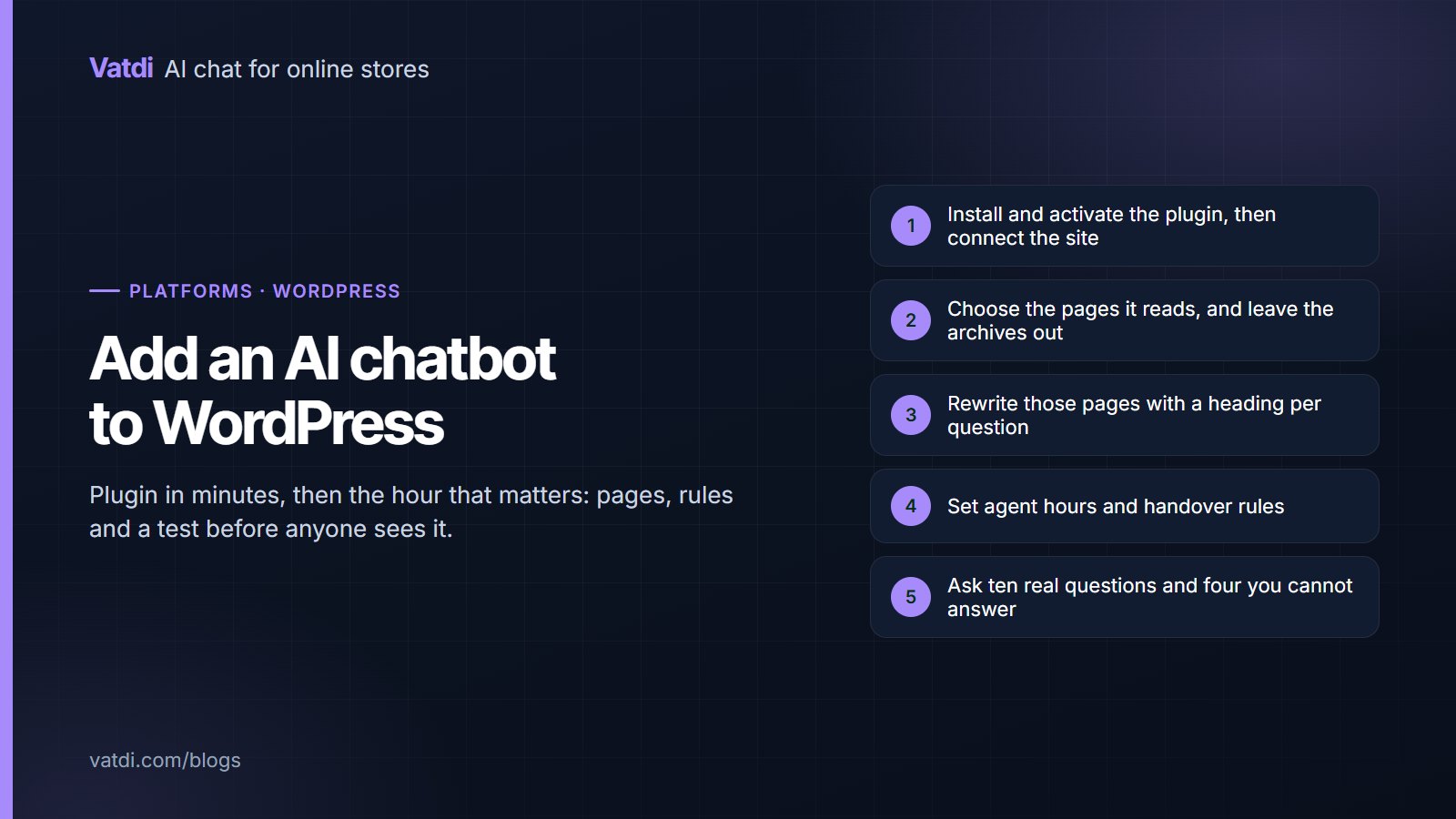
Install the plugin from your WordPress admin, activate it, and connect the site from its settings screen. No API keys are copied by hand. On a WooCommerce store the catalogue begins syncing immediately and order lookup becomes available; on a plain WordPress site there is no catalogue, so the assistant works from your pages alone. If the plugin activates but shows as not connected, the usual causes are a security plugin blocking the outbound request or a caching layer serving a stale settings page.
Step two: choose what it reads
| Content | Include? | Why |
|---|---|---|
| Policy pages: shipping, returns, sizing, payment | Yes | The questions customers ask most |
| Contact and hours | Yes | So the assistant can say when a person is available |
| Service or product pages | Yes | The substance of what you sell |
| Blog archives, category and tag pages | No | They add noise and compete with the pages that answer |
| Old promotions and expired offers | No | A shopper offered last year's discount is a support problem |
| Author pages, pagination, search results | No | Nothing to answer from |
WordPress generates a great deal of machine-made content, and crawling all of it is the most common reason a well-installed assistant gives vague answers. Choose the pages that answer questions and leave the rest, as argued in what to feed a store chatbot.
Step three: write those pages as questions
- One question per heading, in the words your visitors use.
- The fact in the first sentence: the number of days, the cost, the yes or no.
- Exceptions named, because those cause the follow-up emails.
- Numbers as text, never only inside an image or a PDF.
- One authoritative copy of each fact, so the footer widget and the policy page cannot disagree.
Worked before-and-after rewrites are in chatbot knowledge base examples, and the full format in how to write a chatbot knowledge base. This step is the one that changes answers; everything else is configuration.
Step four: rules and placement
Set the escalation triggers explicitly rather than accepting a default that sends every mention of a refund to your inbox; the reasoning is in chatbot human handover. Then check the launcher on mobile with your theme's other elements present, since WordPress themes frequently place sticky buttons in the same corner.
Step five: test before anyone sees it
- Ask the ten questions you receive most, in visitors' wording rather than tidy sentences.
- Ask four you genuinely cannot answer; the correct reply is an honest decline plus a route to a person.
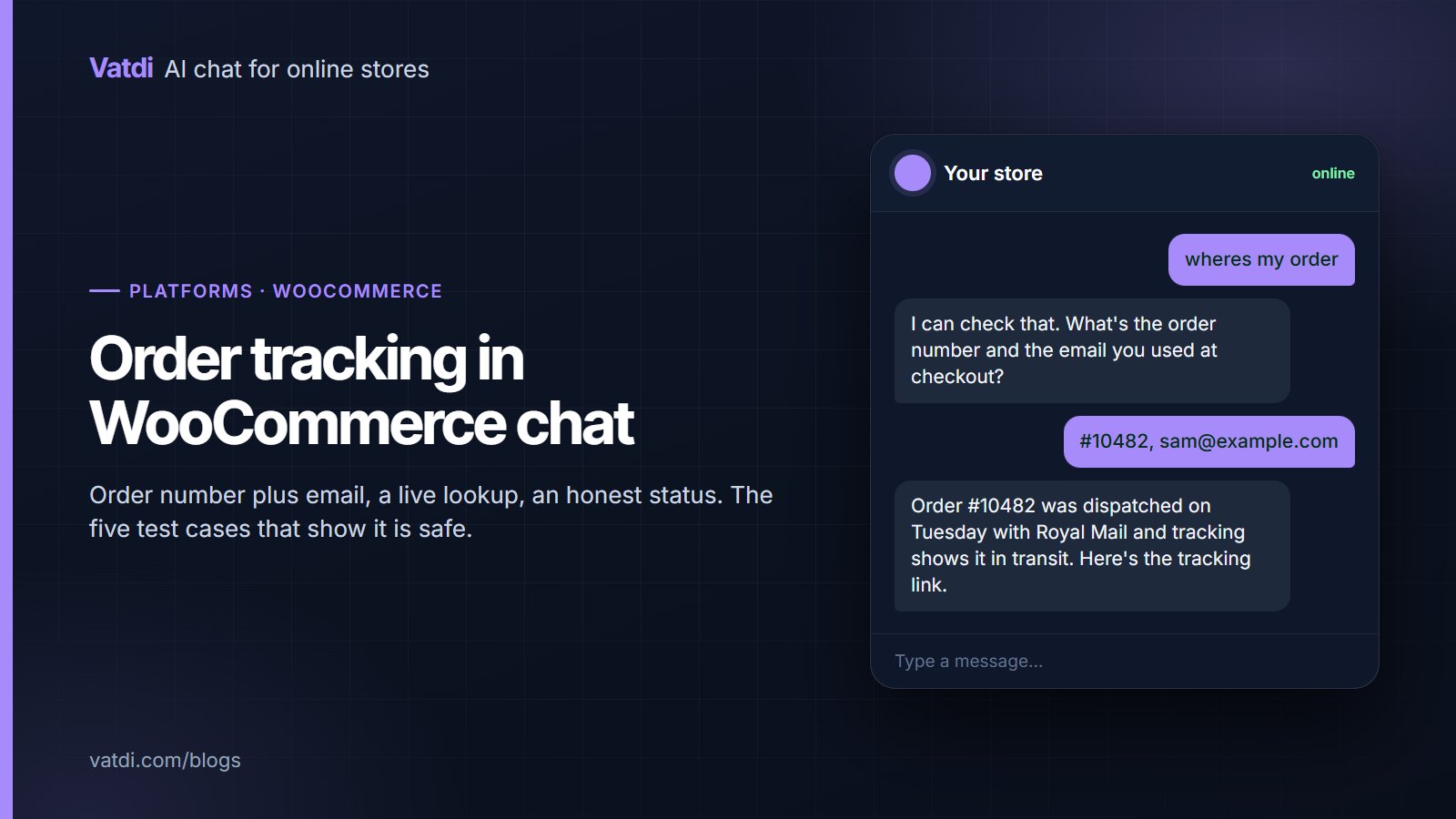
- On WooCommerce, test order lookup with a real order and a deliberately mismatched email.
- Ask a follow-up that omits the subject, to check the conversation holds context.
- Request a person and confirm the handover carries the transcript.
Score each as correct, incomplete, wrong or declined well, following how to test AI chatbot accuracy. A wrong answer is nearly always two pages contradicting each other rather than a plugin fault.
WordPress-specific things that catch people out
- Caching plugins can serve an old page to visitors while you see the new one, which makes a content fix look ineffective. Purge after editing.
- Security plugins sometimes block the plugin's outbound calls, showing as a stalled sync or a site that will not connect.
- Page builders occasionally render key text in a way that is hard to read as content; check that the numbers exist in the page's text, not only in a styled component.
- Multilingual plugins create parallel pages that can drift apart, producing confident contradictions between languages; keep one authoritative copy per market.
- Consent banners can cover the launcher on first visit, which is worth checking on a phone.
The first week after launch
Expect a slow start and a useful second week. Visitors need to notice the launcher before they use it, so the first days are quiet regardless of traffic. What arrives first on a store is order status, and on a service site it is hours and pricing. By the end of the first week the unanswered-question list has enough in it to guide you, and on WordPress sites that list reliably names the same three gaps: a price that exists only inside a styled page-builder component, an opening-hours line that lives in a footer widget rather than a page, and a policy detail that sits in the terms but not in any customer-facing page. Each takes minutes to fix, and fixing them does more than any settings change. Resist adjusting the assistant itself during this period; almost every disappointing answer in a fresh installation is a content gap wearing a configuration costume.
Plain WordPress versus WooCommerce
On a plain site the assistant answers from pages and documents: services, prices if published, hours, coverage, policies and process. On WooCommerce it also answers from the catalogue and can look up orders by number and email, which is the single most requested task in store chat and is covered in detail in WooCommerce chatbot order tracking. The content work is identical in both cases, and it is the part that determines quality. The underlying method, searching your content and composing an answer rather than following a script, is described in Lewis et al., 2020, and WordPress's own plugin handbook covers how plugins are structured if you want to look closer.
Keeping it healthy after a WordPress update
WordPress sites change more often than their owners notice: plugin updates, theme changes, a new caching layer, a migration to a different host. Three of those can quietly break an assistant. After any significant update, ask one product or policy question and, on a store, run one order lookup. Two minutes confirms both the content connection and the order connection are still live. It is also worth re-checking the launcher on mobile after a theme update, since a new sticky element can cover it without anything else appearing wrong. These checks matter because the failure is silent: nothing errors, visitors simply stop getting answers.
What it costs
The plugin is free; the plan decides the rest. As of September 2026 Vatdi is free for 15 conversations a month with every feature included, $4.49 for 150 and $7.49 for unlimited, with badge removal the only paid extra; see pricing. Budget about an hour for setup on a simple site and an afternoon for a store with policies to rewrite. The wider sequence is in the AI chatbot implementation guide.
Frequently asked questions
How do I add an AI chatbot to WordPress?
Install and activate the plugin from your admin, connect the site in its settings, then choose which pages the assistant reads. The install takes minutes. The work that decides quality is rewriting those pages so each heading is a question with the answer in the first sentence.
Do I need WooCommerce?
No. On a plain WordPress site the assistant answers from your pages and documents, which suits service businesses, portfolios and publishers. WooCommerce adds catalogue answers and live order lookup, which matter if you sell online but are not required for the assistant to be useful.
Will it slow my site down?
The widget loads asynchronously and should not block rendering. If you measure a slowdown after installing, check whether a caching plugin is now bypassing cache on some pages, which is a more common cause than the widget itself. Test on a product page with your usual plugins active.
Why does it give vague answers?
Usually because it is reading too much: blog archives, tag pages and old promotions compete with the policy pages that actually answer. Narrow the sources, then rewrite the remaining pages with a heading per question. Both changes take effect as soon as the content is re-read.
Can it answer in other languages?
Yes, in the language the visitor writes in, using the same content. If you run a multilingual plugin, keep one authoritative copy of each fact per market, because parallel pages that drift apart produce confident contradictions between languages that are hard to spot.
What if my theme hides the chat button?
Check the mobile view with your sticky elements and consent banner visible, since those commonly occupy the same corner. Most themes need no change once the launcher position is adjusted, and it is worth fixing before launch rather than wondering why nobody is using it.